PBR Texture Maps Explained
Understand Base Color, Normal, Roughness, and Metallic maps and how they work together on a 3D model.
Physically based rendering, or PBR, uses a group of texture maps to describe how a surface should react to light. Instead of painting highlights and shadows directly into one image, each map carries a different kind of material information.
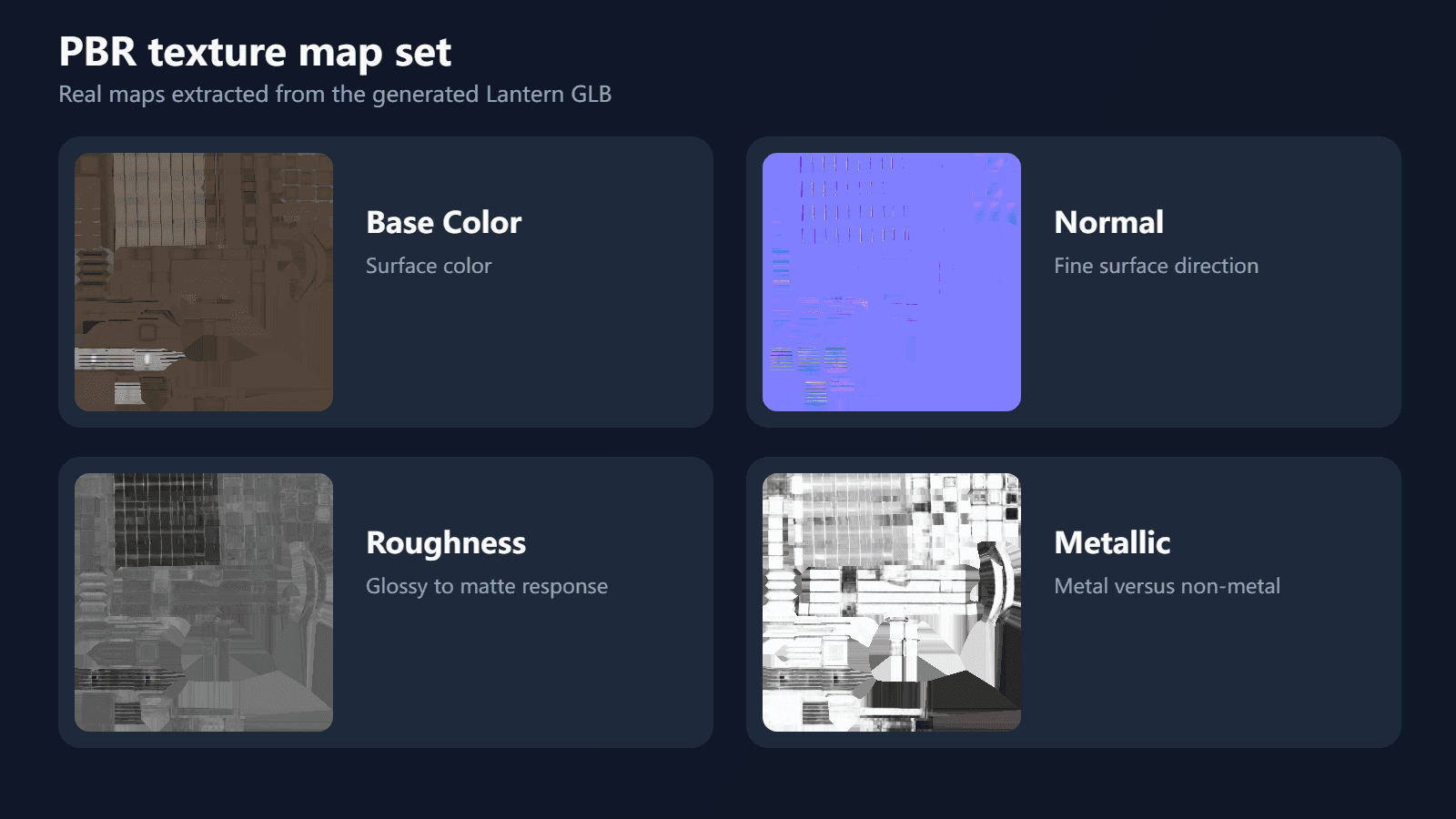
3D Texture Generator exports four common maps: Base Color, Normal, Roughness, and Metallic.
Base Color
Base Color contains the visible color of the material without directional lighting or reflections baked into it.
Examples include:
- The red paint on a toy car
- The brown color of leather
- The green surface of an avocado
- The gold and blue color separation on fantasy armor
Avoid strong painted-in highlights unless the intended art style is explicitly hand-painted. For a conventional PBR asset, the renderer should create most light and shadow at runtime.
Normal
A Normal map changes the direction a surface appears to face without adding more geometry. It can describe small dents, seams, scratches, pores, or stamped details while keeping the mesh relatively light.
Normal maps are not ordinary color images. Their RGB values encode direction, so they should normally be imported as non-color data.
The map is best for small surface detail. It cannot replace geometry for a silhouette-changing feature such as a large spike, handle, or armor plate.
Roughness
Roughness controls how widely light reflections spread across a surface.
- Low roughness produces a sharper, glossier reflection.
- High roughness produces a broader, more matte response.
Polished metal, clean plastic, worn leather, dusty stone, and fabric should not all use the same roughness. Variation in this map is one of the strongest cues that separate believable material regions.
Metallic
Metallic identifies which areas behave like metal.
For most workflows:
- Metal areas use a value near 1.
- Non-metal areas use a value near 0.
Paint, wood, leather, glass, dirt, and skin are generally non-metallic. Bare steel, iron, brass, gold, and aluminum are metallic. A painted metal object normally treats the paint as non-metallic and exposed chips as metallic.
Mid-gray values can be useful around transitions or mixed pixels, but large areas of ambiguous metallic values often make a material look muddy.
How the maps work together
Imagine a painted metal prop with scratched edges:
- Base Color defines the paint color and the exposed metal color.
- Normal adds small scratches and surface dents.
- Roughness makes clean paint smoother and worn areas more irregular.
- Metallic marks exposed metal as metallic while the paint remains non-metallic.
The final appearance comes from the combination, not from any one map.
Common import mistakes
Using the wrong color space
Base Color normally uses sRGB. Normal, Roughness, and Metallic normally use non-color data. Applying sRGB conversion to data maps changes their values and can produce incorrect shading.
Reversing roughness and glossiness
Some workflows use a Glossiness map, which is the inverse of Roughness. If an asset appears glossy where it should be matte, verify which convention the renderer expects.
Treating every bright pixel as metal
Metallic describes material type, not brightness. White plastic is still non-metallic, while dark iron is metallic.
Expecting maps to repair bad UVs
All four maps use the model's UV coordinates. Stretching, accidental overlap, or insufficient padding can affect every exported map.
Generate a complete map set
Upload a UV-mapped GLB to the AI PBR texture generator, describe the intended materials, and download the textured model together with its Base Color, Normal, Roughness, and Metallic maps.
Technical sources
Author
Categories
More Posts
How to Texture a 3D Model with AI
A practical workflow for turning a UV-mapped 3D model into a textured PBR asset with a prompt or reference image.
How to Make Seamless Textures for 3D Models
Make a texture tile cleanly, check it in Blender, and learn when a seamless image is only one part of a PBR material.
How to Bake Textures in Blender
Bake Base Color, Normal, Roughness, and Metallic maps from a UV-mapped 3D model in Blender, save each image, and avoid common blank or broken bakes.