How to Make Seamless Textures for 3D Models
Make a texture tile cleanly, check it in Blender, and learn when a seamless image is only one part of a PBR material.
A seamless texture tiles across a surface without an obvious edge between repeats. That makes it useful for floors, walls, terrain, fabric, and other surfaces that need to cover more area than a single image.
Making an image tile cleanly solves one problem: visible seams between repeats. It does not turn the image into a complete PBR material. You may still need separate Normal, Roughness, and Metallic maps. Here’s how to make the image tile, check it, and use it on a model.
What makes a texture seamless?
When a texture repeats, its left edge meets its right edge, and its top edge meets its bottom edge. If the colors, brightness, or detail don’t line up, you’ll see a grid of seams across the surface.
In a tileable texture, those edges flow into each other. But the center can still give away the pattern, so check a grid of repeats instead of looking at one tile on its own.
Make an image tileable
Start with an image that shows the material clearly and has fairly even lighting. Strong shadows or one distinctive object can make the repeat stand out.
Use the free seamless texture generator to blend the edges in your browser, then download the result. Your image stays on your device. The tool makes a tileable image; it doesn’t create a full set of PBR maps.
Too little blending can leave a visible edge. Too much can blur or smear detail near the borders. Compare the result with the original and keep an eye on both the seam and the texture detail.
Check the repeat before using it
Preview it as a 3-by-3 grid. Look for:
- Straight horizontal or vertical lines between tiles
- A repeated spot, crack, knot, or other feature that forms a visible pattern
- Blurred bands or softened detail around the blended edges
- A lighting change that repeats like a stripe
Some seams are hard to spot in a single tile but obvious in a grid. Also watch for a knot, crack, or spot that repeats in a neat pattern; the texture can be seamless and still look tiled.
Apply the texture to a 3D model
In Blender, create or select a material and add an Image Texture node. Open the image, connect its Color output to the Principled BSDF’s Base Color, and set Extension to Repeat if needed.
The UV map controls the texture scale. Scale the UV islands up to fit more repeats on the model, or down to make the pattern larger. Check the result in Material Preview and adjust until it looks right for the object and viewing distance.
Check it on the model, too. A tileable image won’t fix stretched UVs, accidental overlaps, or a UV seam running through a prominent area. It only hides the boundary where one copy of the image meets the next.
A tileable image is not a complete PBR material
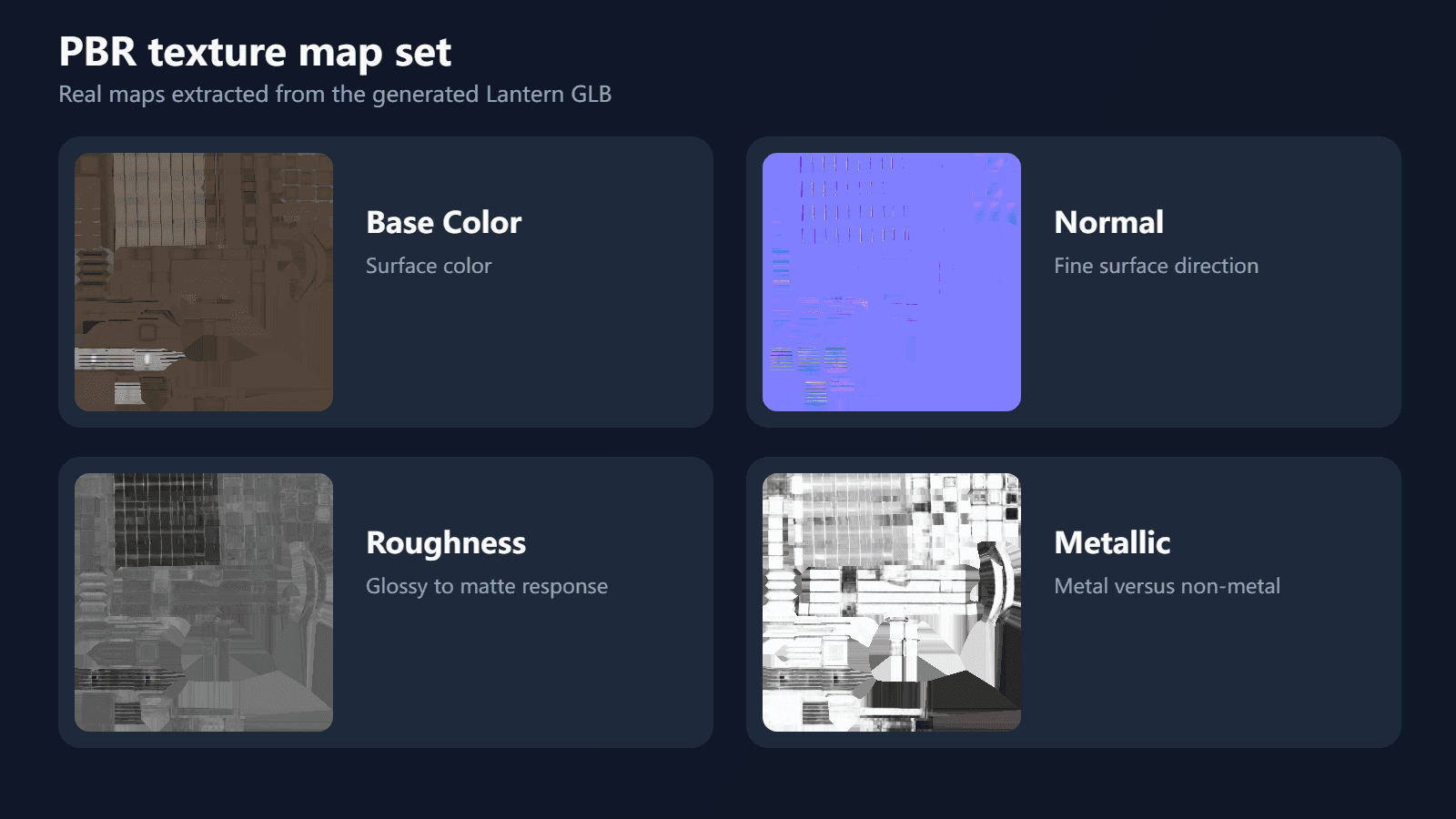
The seamless tool gives you an image you can use as Base Color. That’s the surface color, not a complete PBR material. Depending on the material, you may also need:
- Normal describes small surface direction changes.
- Roughness controls how broad or sharp reflections appear.
- Metallic identifies which areas behave like metal.
Tiling doesn’t make a color image valid data for a Normal or Metallic map. Each map needs values meant for that channel. Read PBR Texture Maps Explained for what each map does, or see How to Bake Textures in Blender if you need to bake material data from a Blender scene.
When to use a GLB texturing workflow
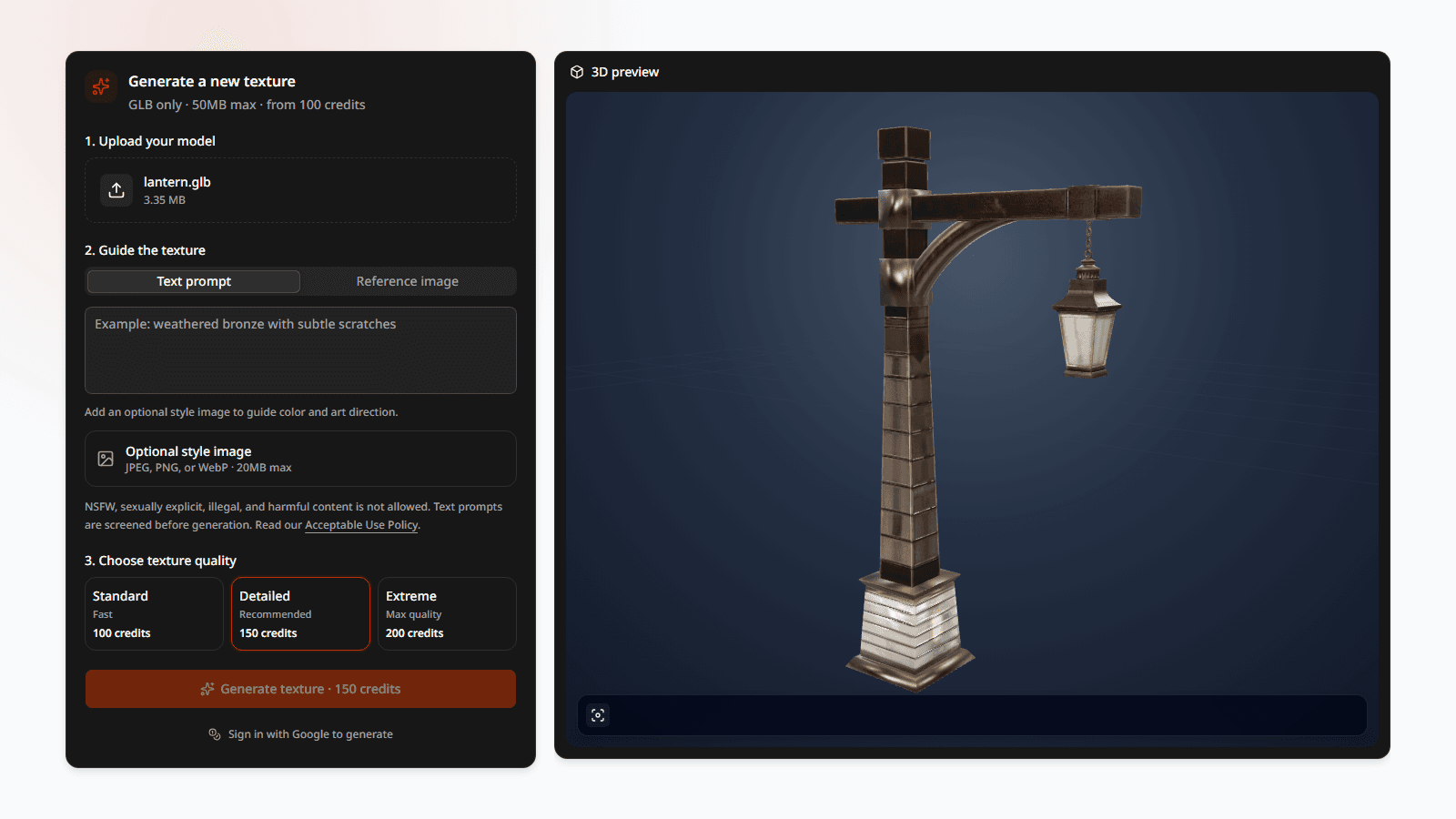
For a wall or floor, a tileable image may be all you need for Base Color. To retexture a whole model with coordinated maps, use a model-based workflow. The 3D texture generator takes a GLB and a prompt or reference image, then generates a result for you to inspect. A reference image guides the look; it isn’t pasted unchanged onto the model.
For the model setup and export steps, see How to Add Textures to a GLB Model.
Common questions
Is every seamless texture a PBR texture?
No. “Seamless” means the image tiles without an obvious edge. “PBR” describes material maps that determine how a surface responds to light. A tileable Base Color can be one part of a PBR material, but it doesn’t include the other maps.
Will a seamless texture remove seams from my model?
It can hide the border between repeated copies of the image. It won’t fix seams caused by the UV layout, stretching, missing pixels, or a material assigned to the wrong surface.
Can I use a seamless texture in a game engine?
Usually. Set the texture to repeat, check its scale on the model, and make sure the engine reads each map in the right color space. Base Color normally uses sRGB; Normal and Roughness are normally treated as non-color data.
How do I know whether the repeat looks natural?
Preview several tiles, then check the material on the model under lighting. A texture can tile without seams and still look repetitive if a distinctive feature shows up too often.
Related guides
Author

Categories
More Posts
How to Add Textures to a GLB Model
Learn how to inspect, extract, add, or replace GLB textures, prepare UVs, apply PBR maps, and export a newly textured 3D model.
How to Bake Textures in Blender
Bake Base Color, Normal, Roughness, and Metallic maps from a UV-mapped 3D model in Blender, save each image, and avoid common blank or broken bakes.
How to Texture a 3D Model with AI
A practical workflow for turning a UV-mapped 3D model into a textured PBR asset with a prompt or reference image.