How to Add Textures to a GLB Model
Learn how to inspect, extract, add, or replace GLB textures, prepare UVs, apply PBR maps, and export a newly textured 3D model.
A GLB can package geometry, materials, textures, a skeleton, and animations in one binary file. That makes it convenient for web previews and game-asset handoffs, but it also means a successful retexture must respect more than the visible color on the surface.
This workflow shows how to add a new PBR texture to an existing GLB without rebuilding the entire asset.
The fastest path for your GLB
Choose the path that matches the result you need:
- Only inspect or extract the current textures: open the GLB in Blender and inspect its existing material images. Save embedded images separately when you need to edit or archive them.
- Change the material direction with words: use the GLB texture generator, upload the model, and describe the material, finish, colors, and surface wear.
- Match a visual direction: use the reference-image texture workflow when a palette, material sample, or art style is easier to show than describe. The PBR texture workflow is the direct product path for an existing GLB and separate map downloads.
The browser-based generator retextures an existing UV-mapped GLB through its generation service. It does not repair UVs, replace a Blender shader graph, or create new geometry.
Check whether the GLB is ready
Open the model in a viewer or Blender and confirm:
- The model loads without missing geometry.
- The mesh has UV coordinates.
- The UV islands are not accidentally stacked or stretched.
- The intended material regions are understandable.
- Rigged characters contain the expected skeleton and animation clips.
A texture generator can create new pixels and material maps, but it still needs a reliable map between the 2D texture and the 3D surface.
Diagnose common GLB failures first
Before spending credits, check the failure that matches the symptom:
- The model previews incorrectly or generation rejects it: confirm the file is a valid GLB, the mesh has usable UV coordinates, and the UV islands are not unintentionally collapsed or stretched.
- The material looks empty after export: check whether the images are embedded in the GLB or referenced by paths that were not packaged with the file. A GLB can contain geometry without containing an image for every PBR channel.
- Colors or surface response look wrong: verify Base Color is treated as sRGB, while Normal, Roughness, and Metallic use non-color data in the target material.
- An animated character cannot be preserved: confirm mesh names and UV topology remain compatible with the source. Animation clips belong to the original rig, but an unsafe material merge should fail instead of returning a broken character.
What "texturing a GLB" changes
The mesh defines the shape. The texture maps define how its surface looks under lighting.
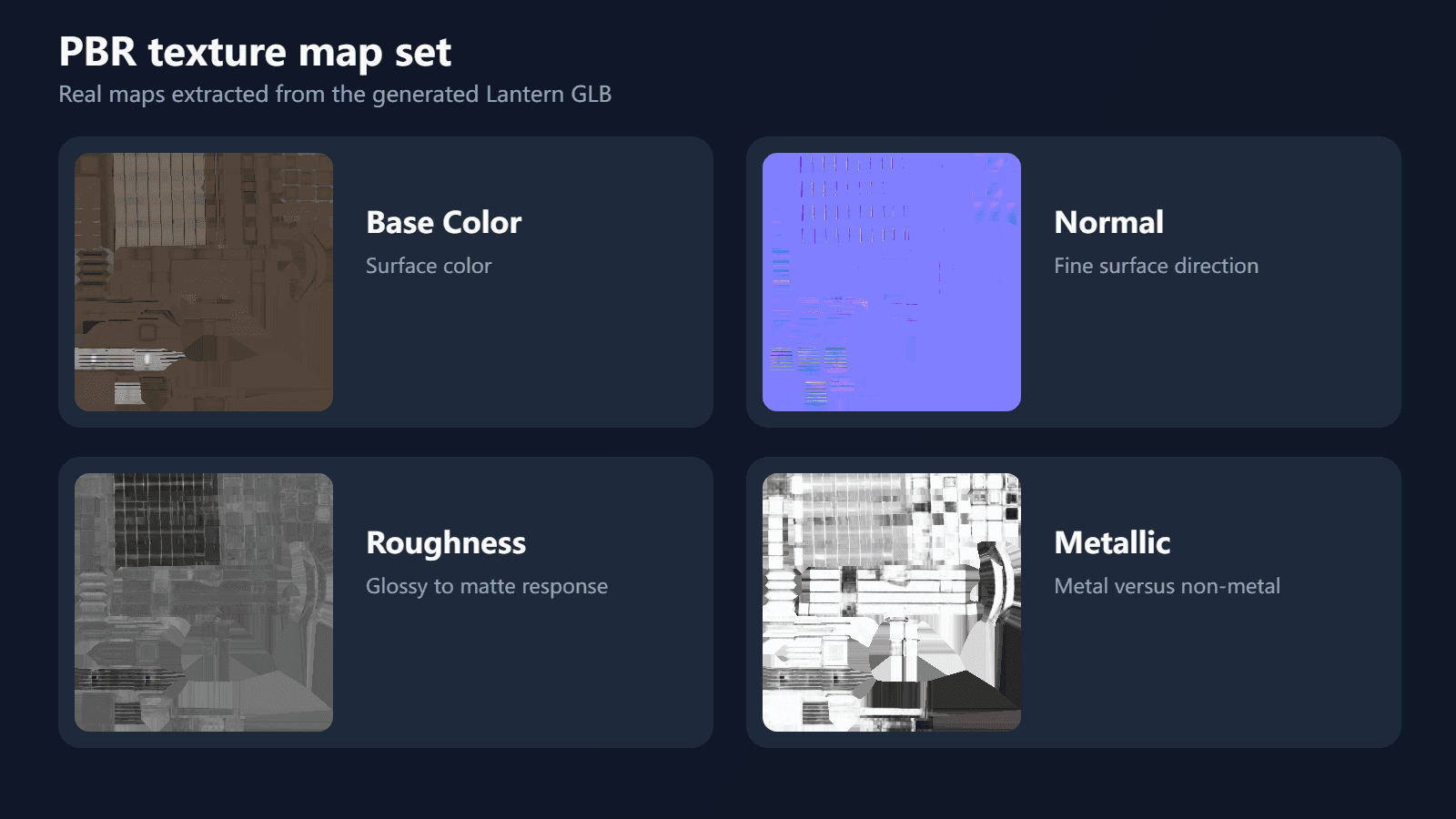
A typical PBR result uses:
- Base Color for visible color without lighting
- Normal for small surface-direction changes
- Roughness for glossy versus matte response
- Metallic for metal versus non-metal behavior
These maps are connected to the material and packaged with the geometry in the downloaded GLB.
How to inspect or extract textures from a GLB
A GLB may contain its texture images inside the binary file instead of placing separate PNG or JPEG files beside the model. Import the GLB into Blender, select the mesh, and open the Shading workspace to see which image textures feed each material.
To save an embedded image as a separate file, choose it in Blender's Image Editor, then use Image > Save As. Repeat this for each image you need. Some materials use only color or numeric values, so not every GLB contains an image for every PBR channel.
Extracting the current images is useful when you want to inspect or edit the existing surface. If you want a different material direction, continue with the prompt or reference-image workflow below and export a newly textured GLB.
Add a texture with a text prompt
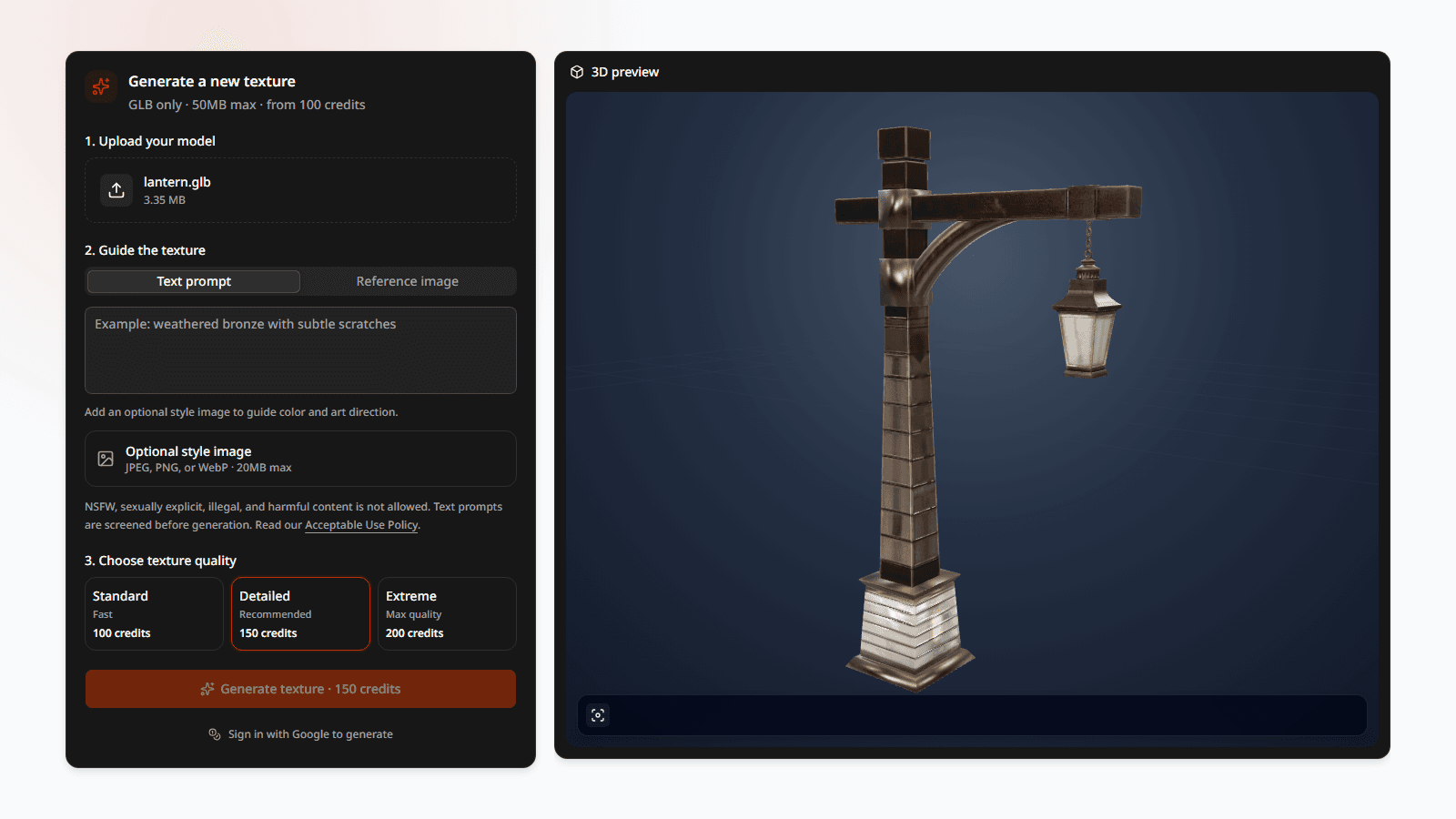
Go to the GLB texture generator, upload the model, and describe the material direction.
For a lantern, a useful prompt might be:
Weathered fantasy lantern with aged brass framing, dark iron joints, smoky glass, subtle scratches, and restrained edge wear.
This is more actionable than "make it medieval" because it identifies the materials and the way each surface should age.
Add a texture from a reference image
Use a reference image when you need to communicate a palette, brush treatment, or art style. The source image does not have to match the model's silhouette, but it should make the intended materials easy to read.
For more control, combine the image with a short prompt that names the parts that should be metal, painted, leather, stone, fabric, or another material. The reference-image workflow walks through the image upload, quality choice, preview, and available PBR downloads.
Inspect the generated GLB
Rotate the result under the preview lighting and look for:
- Consistent texel density across large and small parts
- Clean transitions between material regions
- Details that follow the model instead of fighting its geometry
- Sensible roughness and metallic response
- No obvious UV seams on important visible surfaces
Use the clay view to compare the same geometry without the generated material. This helps separate a modeling problem from a texturing problem.
Download and continue the workflow
Download the textured GLB for the complete result. Download the individual PBR maps when you want to adjust the material in another application.
In Blender, reconnect the maps to a Principled BSDF material if you need manual control. In a game engine, verify the expected color space for each map:
- Base Color normally uses sRGB.
- Normal, Roughness, and Metallic normally use non-color data.
The exact import options depend on the engine, but preserving those roles keeps the PBR response predictable.
What happens to animations?
Textures do not define movement. A character's running, jumping, and attack clips belong to the original rig and animation tracks.
For a compatible rigged GLB, the texturing workflow can keep the skeleton, skin weights, morph targets, and animation clips while replacing the surface appearance. The preservation check should fail safely if the generated mesh no longer matches the required source topology.
Try it with your model
Use the 3D Texture Generator to upload a GLB, inspect its source data, generate a new look, and download both the complete model and its individual maps.
Related GLB and Blender guides
- Texture a 3D model with AI when you need the complete prompt, reference-image, and inspection workflow.
- Bake textures in Blender when you need portable Base Color, Normal, Roughness, and Metallic images.
- Use an AI-textured GLB in Blender when the generated model is ready to import and refine.
- Guide a 3D texture with a reference image when color and material direction are easier to show than describe.
- Retexture an animated GLB when the source contains a rig and animation clips that must remain intact.
Technical sources
Author

Categories
More Posts
How to Bake Textures in Blender
Bake Base Color, Normal, Roughness, and Metallic maps from a UV-mapped 3D model in Blender, save each image, and avoid common blank or broken bakes.
How to Make Seamless Textures for 3D Models
Make a texture tile cleanly, check it in Blender, and learn when a seamless image is only one part of a PBR material.
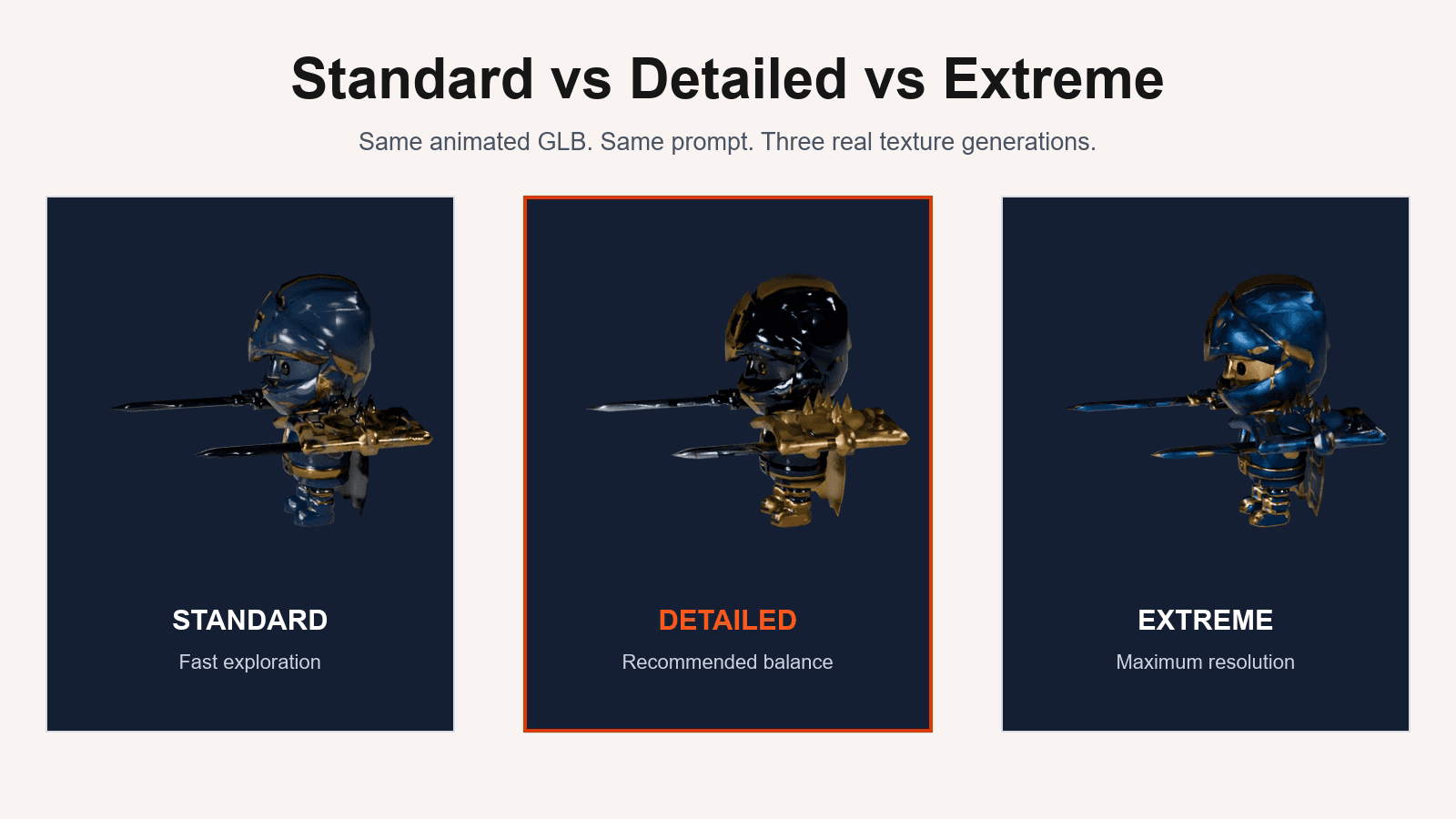
Standard vs Detailed vs Extreme: AI Texture Quality Compared
See one animated GLB textured at all three quality levels, with real renders, map resolutions, file sizes, and a practical recommendation.